Network traffic is like the heartbeat of your digital infrastructure. Every click, download, and data transfer leaves a trace. But how do cybersecurity professionals actually see what’s happening behind the scenes? The answer lies in a powerful tool called Wireshark.
If you’re just starting your journey into network analysis or cybersecurity, Wireshark might seem overwhelming at first. Rows of colorful packets, cryptic protocols, and endless data streams can make anyone feel lost. But here’s the good news: once you understand the basics, reading network traffic becomes surprisingly straightforward.
This guide will walk you through the fundamentals of Wireshark, helping you go from complete beginner to someone who can confidently analyze network packets. Whether you’re troubleshooting network issues, learning ethical hacking, or simply curious about how data moves across networks, you’re in the right place.
What is Wireshark and Why Does It Matter?
Wireshark is a free, open-source network protocol analyzer. In simple terms, it’s a tool that captures and displays data traveling across a network in real time. Think of it as a magnifying glass for your internet connection, allowing you to see every conversation between devices.
Network administrators use Wireshark to diagnose connectivity problems. Security professionals rely on it to detect suspicious activity and potential threats. Developers use it to debug applications and understand how data flows between systems.
The tool supports hundreds of protocols, from common ones like HTTP and TCP to specialized industrial and IoT protocols. This versatility makes it an essential skill for anyone working in IT or cybersecurity.

Getting Started with Wireshark
Installing Wireshark
Wireshark works on Windows, macOS, and Linux systems. Simply download the appropriate version from the official Wireshark website and follow the installation wizard. During installation, you’ll be prompted to install additional components like WinPcap or Npcap, which are necessary for packet capture functionality.
Choosing the Right Network Interface
When you first launch Wireshark, you’ll see a list of available network interfaces. These represent different ways your computer connects to networks, such as Ethernet, WiFi, or virtual adapters.
Select the interface that’s actively transmitting data. You’ll notice small graphs next to each interface showing real-time activity. Pick the one with visible traffic patterns to start your first capture.
Understanding the Wireshark Interface
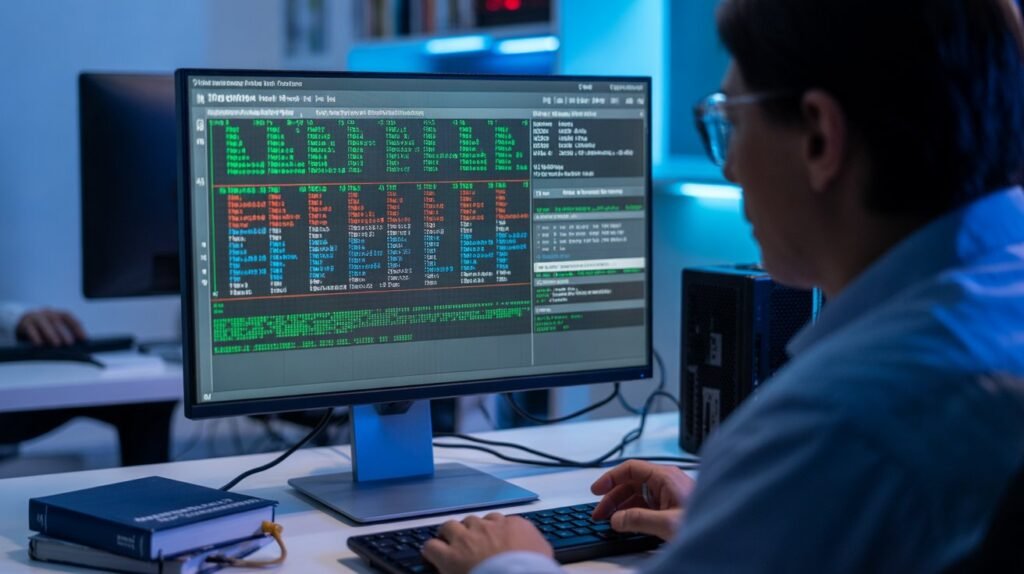
The Wireshark window is divided into three main sections, each serving a specific purpose.
Packet List Pane
This top section displays all captured packets in chronological order. Each row represents a single packet, with columns showing key information like source and destination addresses, protocol type, and basic packet details.
The color coding here is your first clue to what’s happening. By default, green packets typically represent TCP traffic, blue indicates UDP, and black shows problematic packets with errors.
Packet Details Pane
The middle section breaks down the selected packet into layers. When you click on any packet in the list above, this pane reveals its internal structure, organized according to the OSI model.
You’ll see headers for different protocol layers, from the physical frame details up through transport and application layer information. Each layer can be expanded to reveal more specific data.
Packet Bytes Pane
The bottom section displays the raw hexadecimal and ASCII values of the selected packet. This is where the actual data lives in its most basic form. While beginners rarely need to interpret raw bytes, it’s useful for advanced analysis and understanding how data is actually structured.
Reading Your First Network Packet
Let’s break down what you’re actually looking at when you capture network traffic.
Identifying Key Packet Information
Every packet contains several critical pieces of information. The source IP address tells you where the data came from. The destination IP address shows where it’s going. The protocol field indicates what type of communication is happening, such as HTTP for web traffic or DNS for domain name lookups.
The timestamp shows exactly when the packet was captured. The length tells you how much data the packet contains. These basic details help you build a picture of network activity.

Understanding Common Protocols
HTTP and HTTPS packets represent web browsing activity. When you see HTTP traffic, you’re watching unencrypted web requests and responses. HTTPS traffic appears encrypted, protecting sensitive information from prying eyes.
DNS packets show domain name resolution requests. Every time you type a website address, your computer asks a DNS server to translate that human-readable name into an IP address.
TCP packets handle reliable data transmission with error checking and ordered delivery. UDP packets prioritize speed over reliability, making them common for streaming and gaming applications.
Best Practices and Tips
Start with small captures rather than letting Wireshark run for hours. Focused captures are easier to analyze and less overwhelming for beginners.
Learn one protocol at a time. Master HTTP before moving to more complex protocols. This builds your understanding gradually without causing information overload.
Use the “Follow TCP Stream” feature to see complete conversations between devices. Right-click any packet and select this option to view the entire data exchange in a readable format.
Save interesting captures for later study. Wireshark files can be reopened anytime, allowing you to build a personal library of examples.
Common Beginner Mistakes to Avoid
Don’t capture traffic on busy networks without proper authorization. Always ensure you have permission before analyzing network data in professional or shared environments.
Avoid trying to memorize every protocol and field. Instead, focus on understanding core concepts and learning where to find information when you need it.
Don’t ignore privacy and legal considerations. Packet captures can contain sensitive information like passwords and personal data. Handle captured data responsibly and ethically.
FAQs
Is Wireshark difficult to learn? Wireshark has a learning curve, but the basics are accessible to beginners. With practice and focused study, most people can start analyzing simple network traffic within a few hours.
Can Wireshark capture WiFi passwords? Wireshark can capture encrypted WiFi traffic, but modern encryption protocols like WPA2 and WPA3 protect passwords from simple packet capture. Ethical use of Wireshark never involves unauthorized access to networks.
Do I need programming knowledge to use Wireshark? No programming skills are required for basic Wireshark usage. Understanding network concepts helps, but you can learn these alongside Wireshark itself.
Is Wireshark legal to use? Wireshark is completely legal. However, capturing traffic on networks you don’t own or have permission to monitor may violate laws or policies. Always use Wireshark ethically and legally.
Can Wireshark slow down my network? Wireshark itself doesn’t affect network performance. However, capturing and saving large amounts of traffic can consume system resources on the computer running Wireshark.
What’s the difference between Wireshark and other network tools? Wireshark focuses on deep packet inspection and protocol analysis. Other tools like Netstat show active connections, while tools like Nmap scan networks for devices. Each tool serves different purposes.
Conclusion
Learning to read network traffic with Wireshark opens doors to understanding how digital communication actually works. You’ve now covered the essential concepts: what Wireshark does, how to navigate its interface, how to read packets, and how to use filters effectively.
The key to mastering Wireshark is hands-on practice. Start capturing traffic on your own network, experiment with different filters, and gradually explore more complex protocols. Every packet you analyze builds your expertise and confidence.
Ready to take your network analysis skills further? Download Wireshark today and start exploring the invisible world of network traffic. Your journey from beginner to cyber pro starts with that first packet capture.
